You can learn and read our powerpoint presentation tips, tricks and tutorial, If you find this section is useful, feel free to bookmark it, so you can easily comeback here.

To add, play or enable music and sound on your powerpoint slide, simply follow this tutorial (compatible with powerpoint 2007) :
1. Open Ms.Powerpoint 2007 > Click Insert Menu
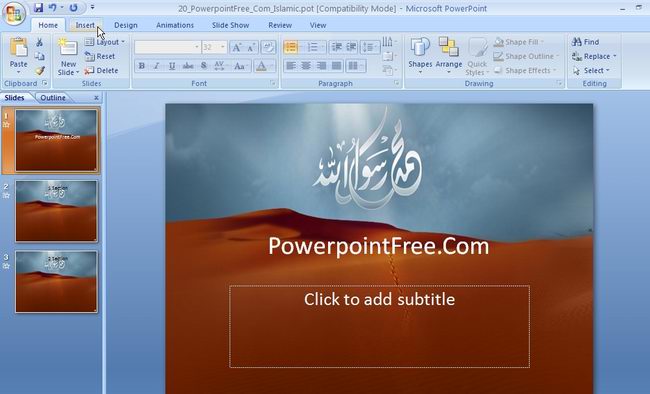
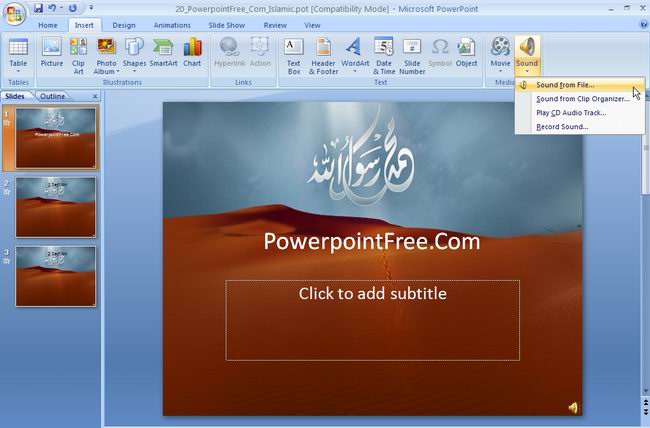
2. Click Sound Button > Select The Source of Your Music Files
If you save the file in your harddisk, choose "Sounds from file"
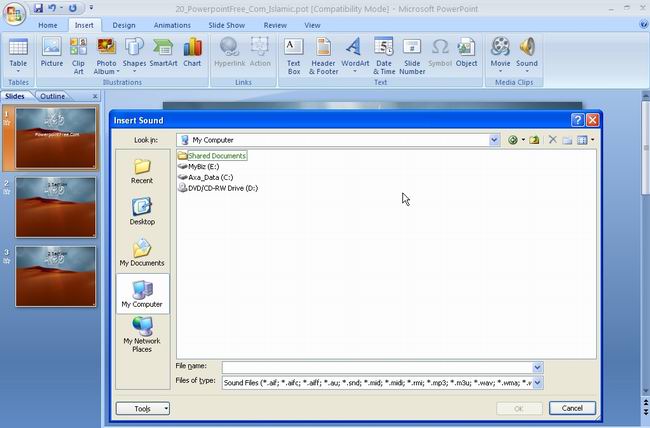
3. Choose the music or sound files. It supports various kind of sound file formats, such : .aif, .aff, .mp3, .wav, .wma, etc.
4. You will see there's a speaker or sound image on powerpoint slides, also there's new menu appears named "Sound Tools" at the top of your powerpoint program
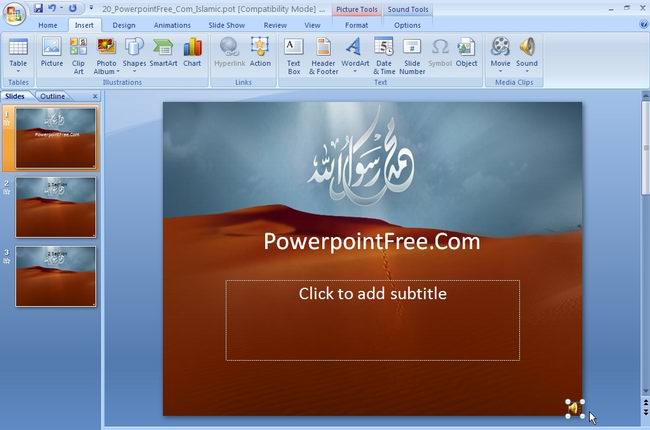
5. Click on the new menu appears named "Sound Tools" at the top of your powerpoint program
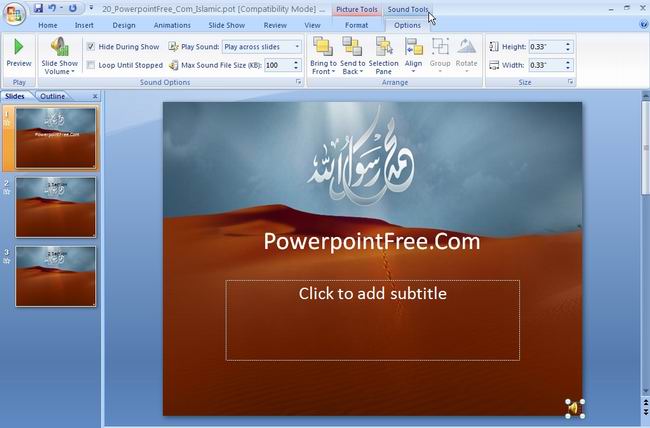
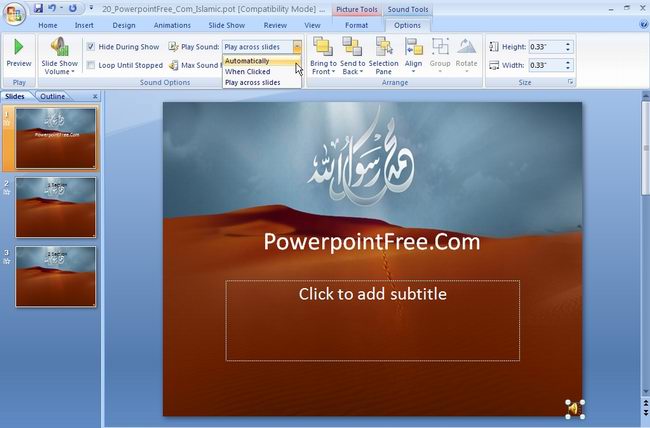
6. Sort the options of "Play Sound" drop-down button, there are 3 options :
a. Automatically : Song or Music will automatically played once you start your presentation, but it will stopped and re-loop when you go to the next slide
b. When Clicked : Song or Music will automatically played once you click on the speaker image / button, but it will stopped and re-loop when you go to the next slide
c. Play Across Slides : Song or Music will automatically played once you start your presentation and will continue plays until at the end of your powerpoint presentation
7. Press F5 on your keyboard and Enjoy your music and sound on Powerpoint Presentation!
Read Other Useful Powerpoint Presentation Tips and Guidances :
View and Download Beautiful Free Powerpoint Templates and Backgrounds :
 |
 |
 |
 |
|---|---|---|---|
 |
 |
 |
 |
 |
 |
|
 |
 |
 |
 |
 |